

What is involved?
Add applications, AI providers, agents, gateways, tools, databases, and human checkpoints. Describe each component’s purpose and who is responsible for it.
AGENTICERT FLOW
Every AI interaction has a system behind it. Flow turns the applications, models, tools, data stores, and people in that system into a map you can explore and explain.
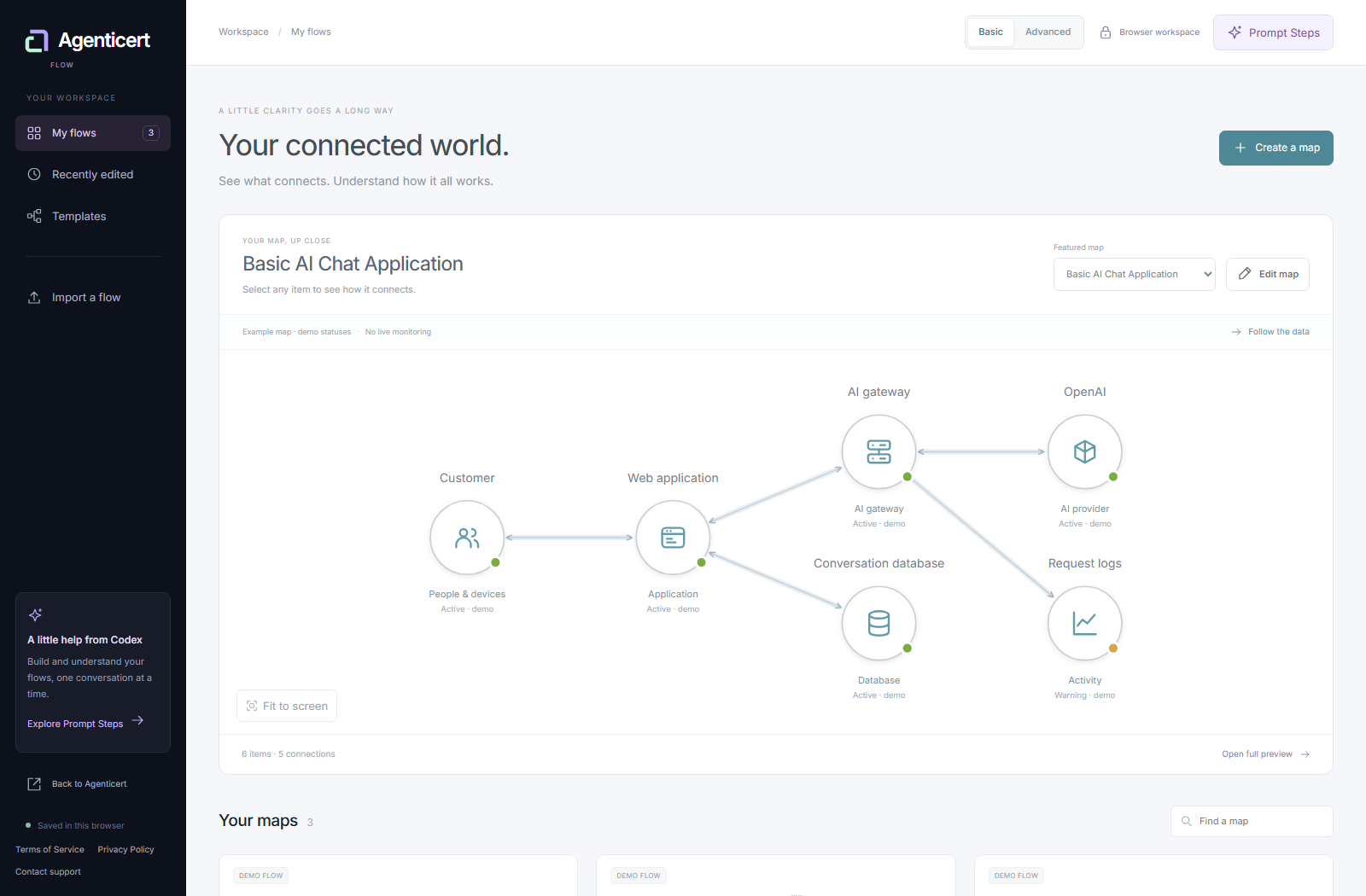
A SHARED PICTURE OF YOUR AI
A feature name rarely explains the whole system. Flow gives product, engineering, security, and business teams a common place to see what connects and ask better questions.
Add applications, AI providers, agents, gateways, tools, databases, and human checkpoints. Describe each component’s purpose and who is responsible for it.
Connect components to describe requests, responses, retrieved context, stored records, or actions. Branches make supporting systems visible alongside the main path.
Keep provider, ownership, data-handling, and security details alongside the map. Distinguish example values, manually declared information, and details that remain unknown.
FROM OVERVIEW TO EXPLANATION
Start with a workflow, then use the same map to answer different questions. You do not need to redraw the architecture for every audience.
Open a template or create a map. The template library includes AI chat, customer support, and an enterprise assistant, so you can begin with a recognizable workflow and adapt it.
Select a component or connection to see its description and recorded details. Use the dashboard’s featured map for an overview, or open the designer to add and edit the parts of your system.
Switch from Infrastructure to Data journey to focus on information moving between components. Use the guided preview to walk through the connected workflow and discuss each step.
Edit descriptions, organize the layout, and use undo or redo while working. Export a JSON file to keep a backup or give someone a copy they can import into their own browser.
ONE MAP, TWO LEVELS OF DETAIL
Basic and Advanced use the same underlying map. Switching views changes how you explore it and preserves the components, connections, and saved information.
Simple service icons and connections make the workflow approachable. Inspect an item, follow the data, or use the essential editing fields without navigating every technical detail at once.
Use it for a product walkthrough, a stakeholder conversation, or your first look at a system.
Component cards, connection labels, a larger editing canvas, and detailed fields help you document the architecture. Record dependencies, ownership, information handling, and stated safeguards in context.
Use it when designing a workflow, reviewing dependencies, or preparing a more detailed explanation.
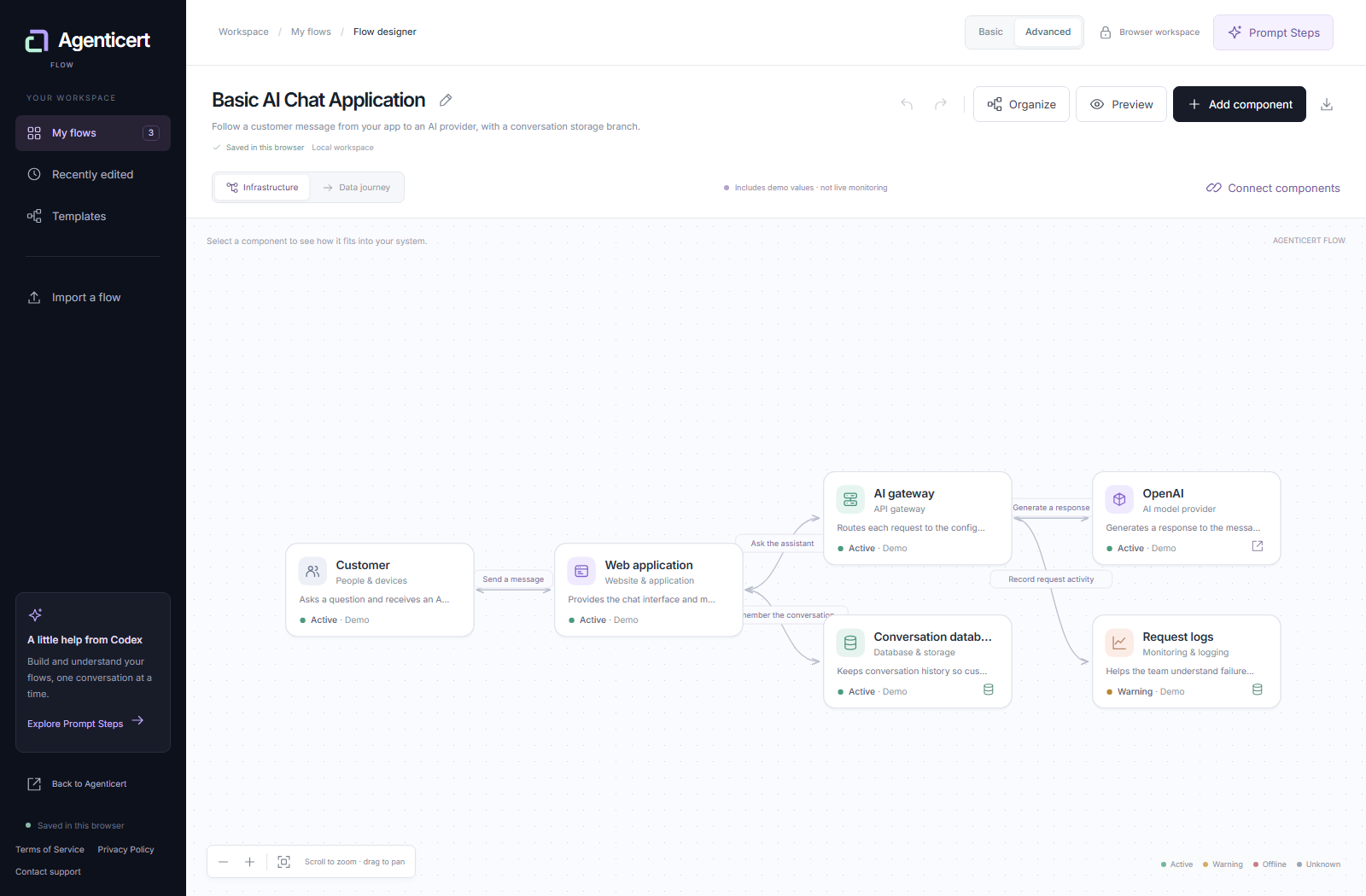
USE THE VIEW THAT ANSWERS THE QUESTION
Explain where a feature begins, which services it depends on, and what changes when a provider or tool is added. Keep the diagram connected to the information people need to understand it.
Locate data destinations, ownership boundaries, and declared controls. Use unknown information as a review question, then ask the responsible team for the supporting record.
Walk through the system in Basic view. Show where information travels and where a person remains involved, without requiring the audience to read every implementation detail.
YOUR FIRST FEW MINUTES IN FLOW
Find Templates in the workspace and create your own copy. Give the map a name that identifies the feature or task it describes.
Rename the application and provider. Add the storage, tools, or human checkpoints involved in your workflow, and connect them to the appropriate components.
Record what a connection carries and why. Leave unconfirmed details unknown instead of copying an example value as if it were verified.
Check the overview in Basic, inspect the details in Advanced, and follow the journey in Preview. Export your map to keep a backup or share a copy for review.
Prompt Steps provides task-specific prompts you can copy into Codex with the workspace open. Use them to explain a map, think through a data journey, or request an edit. These prompts support your conversation with an external assistant; Flow does not run an embedded chatbot.
A FEW USEFUL ANSWERS
Maps are saved in local storage in the browser you use. There is no cloud account, cross-device synchronization, or server backup in this workspace. Export JSON to keep a separate copy. Clearing site data can remove saved maps.
Drawing a connection documents a relationship; it does not connect to the real system, send requests to its AI provider, or enforce an approval step. Flow does not automatically discover infrastructure or monitor service health.
They display the status recorded for a component or connection. Built-in templates clearly mark example values. Manually declared statuses describe what someone has entered; they are not independent operational checks.
You can export a map and share its JSON file for someone else to import. Each browser works with its own copy. The workspace does not provide simultaneous editing or shared organizational accounts.
Flow explains the system and its connections. AI Transparency organizes the disclosed practices around that system, such as data handling, oversight, and incident response. A map can provide context for those disclosures, but it does not establish that a safeguard is effective or that a system is certified.
Explore AI TransparencyNo. Describe the role of a service and the relevant information categories without adding passwords, API keys, or tokens. Use only information you are authorized to document and share.
MAKE YOUR AI EASIER TO UNDERSTAND
Explore the workspace, choose a template, and follow the connections.